1. Document your training with the CalTopo app
Use the CalTopo mobile app to record time, location, and track data while you’re training.GPS for Detection Exercises
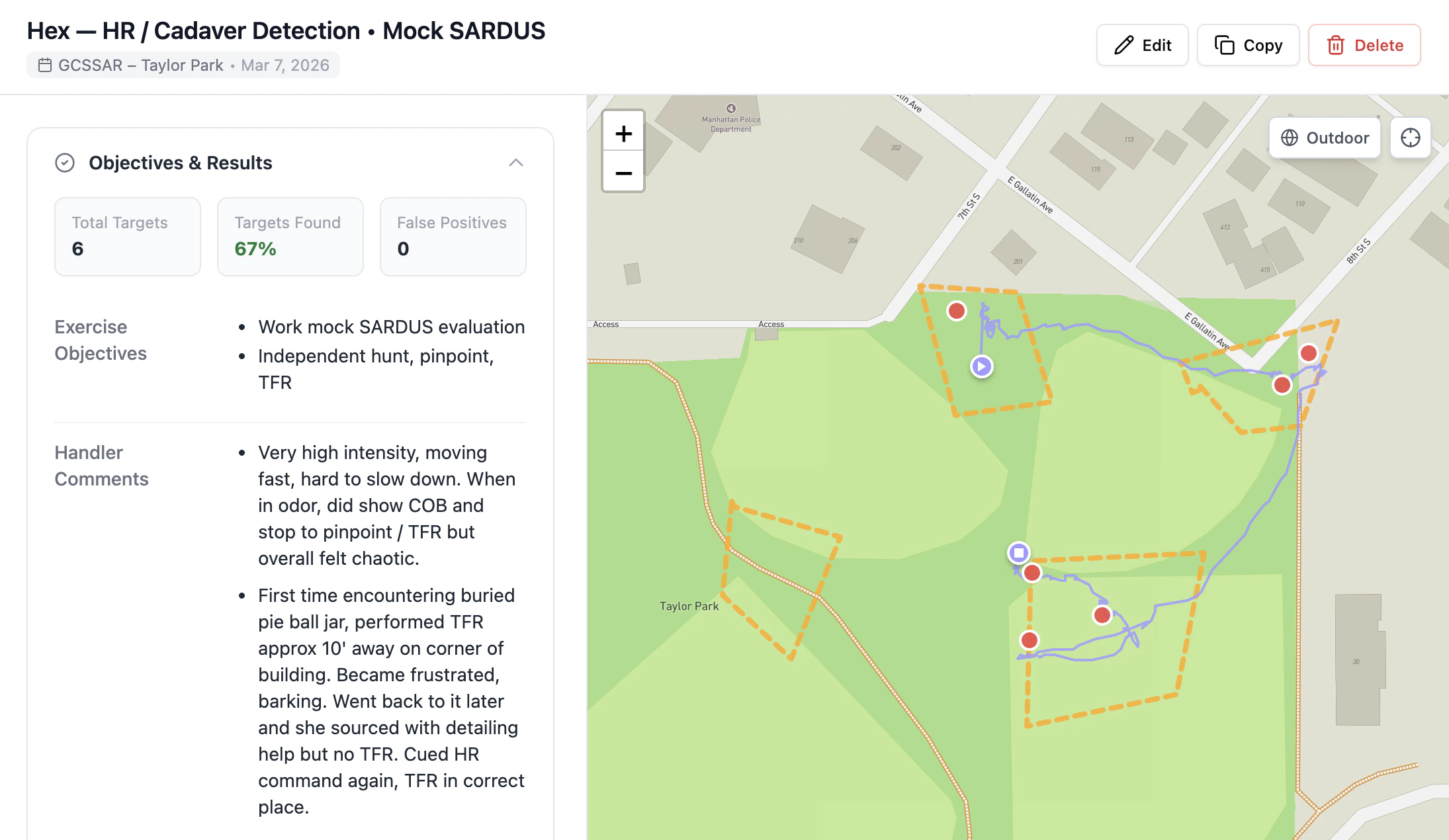
Use the CalTopo mobile app to easily record and pre-fill your logs with the following info:- Training aid placement
Mark a waypoint when you place a training aid. The timestamp, gps coordinates, and any comments you make will be automatically imported. - Your track
Record your track while working each exercise. Your start time and working duration will be automatically calculated and imported. - Search area boundaries
Add area boundaries to automatically calculate the size of your search areas.
GPS for Tracking/Trailing exercises
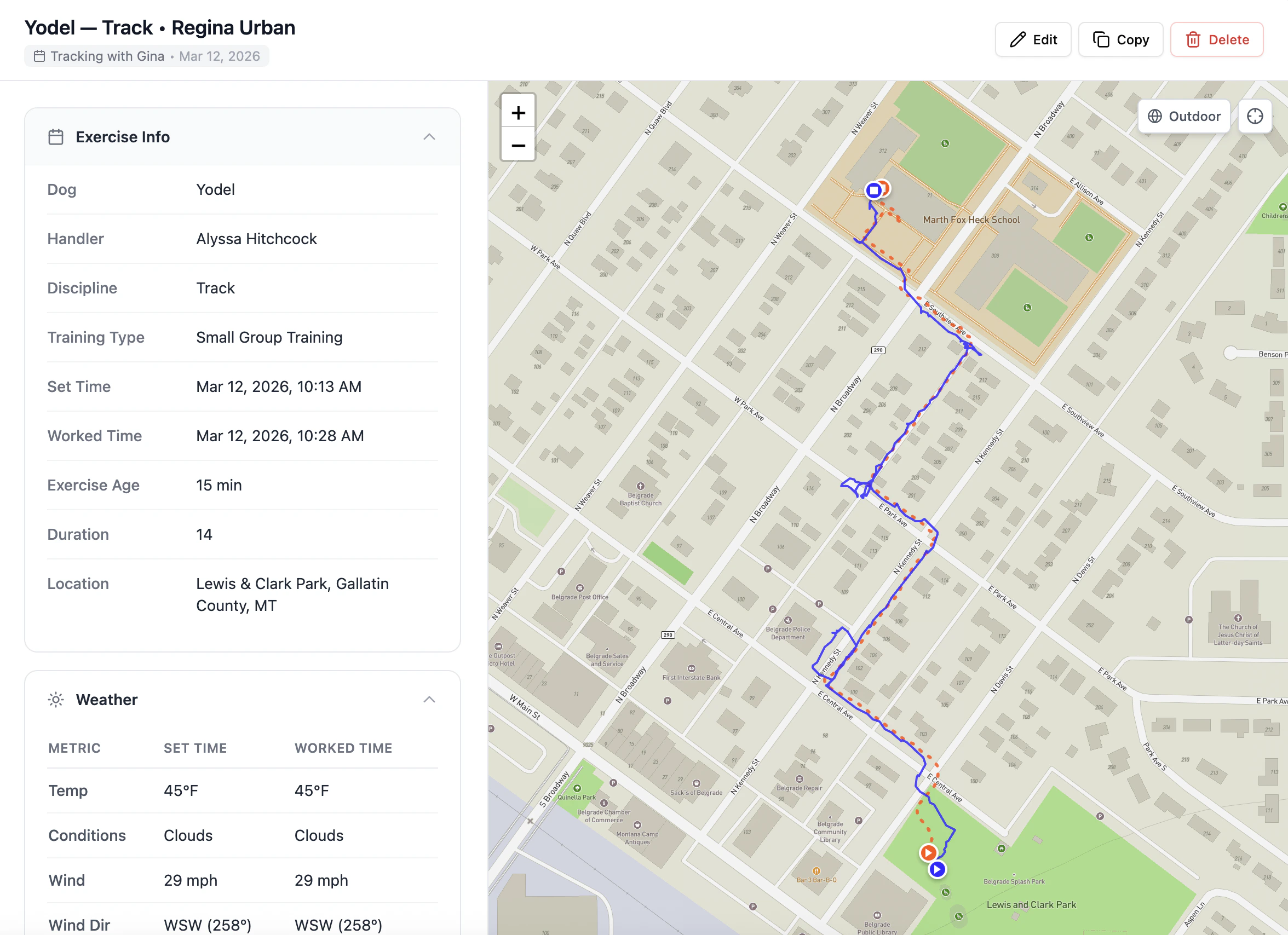
Use the CalTopo mobile app to easily record and pre-fill your logs with the following info:-
Runner track
Have your subject record their track to gather set time + runner distance. Bonus – it’s automatically available on your map, eliminating the need to send GPX tracks back and forth. -
Your track
Record your track to gather worked time, duration, dog distance If both tracks are available,_ K9 Training Log will also calculate _max distance off track
2. After training, review and export your CalTopo map
Click Export in the top left corner of the screen, select the data you want to import into your training log, and click Export in the bottom right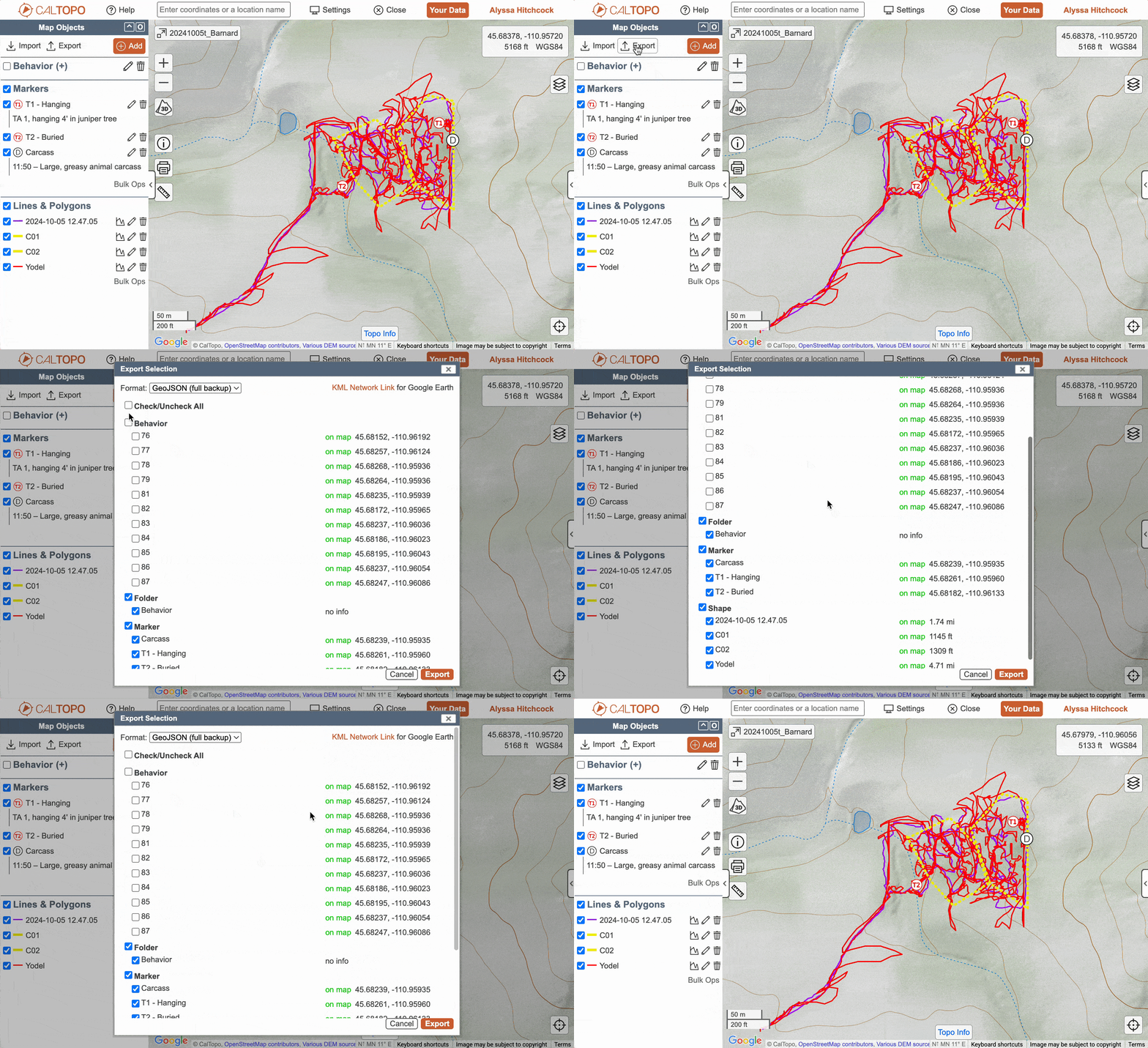
3. Create your training log & import your file
Open your training event and click New Exercise. At the bottom of the Exercise Info section, select Import GPS Data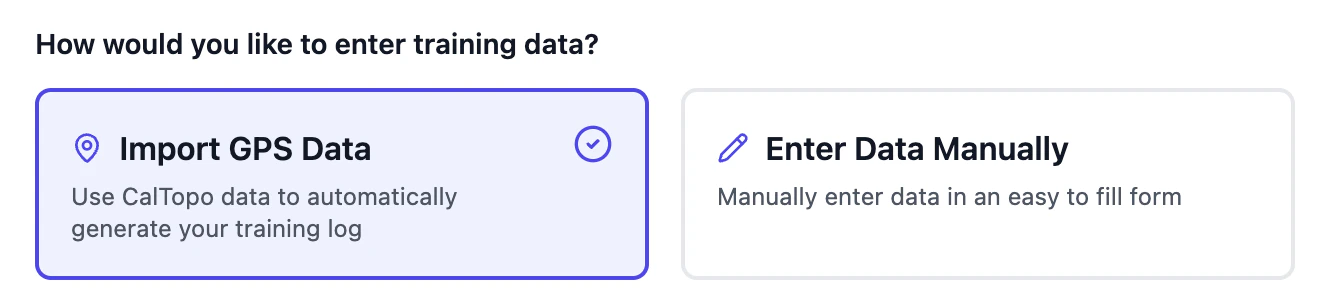
4. Drag & drop or browse to your downloads to find your JSON file
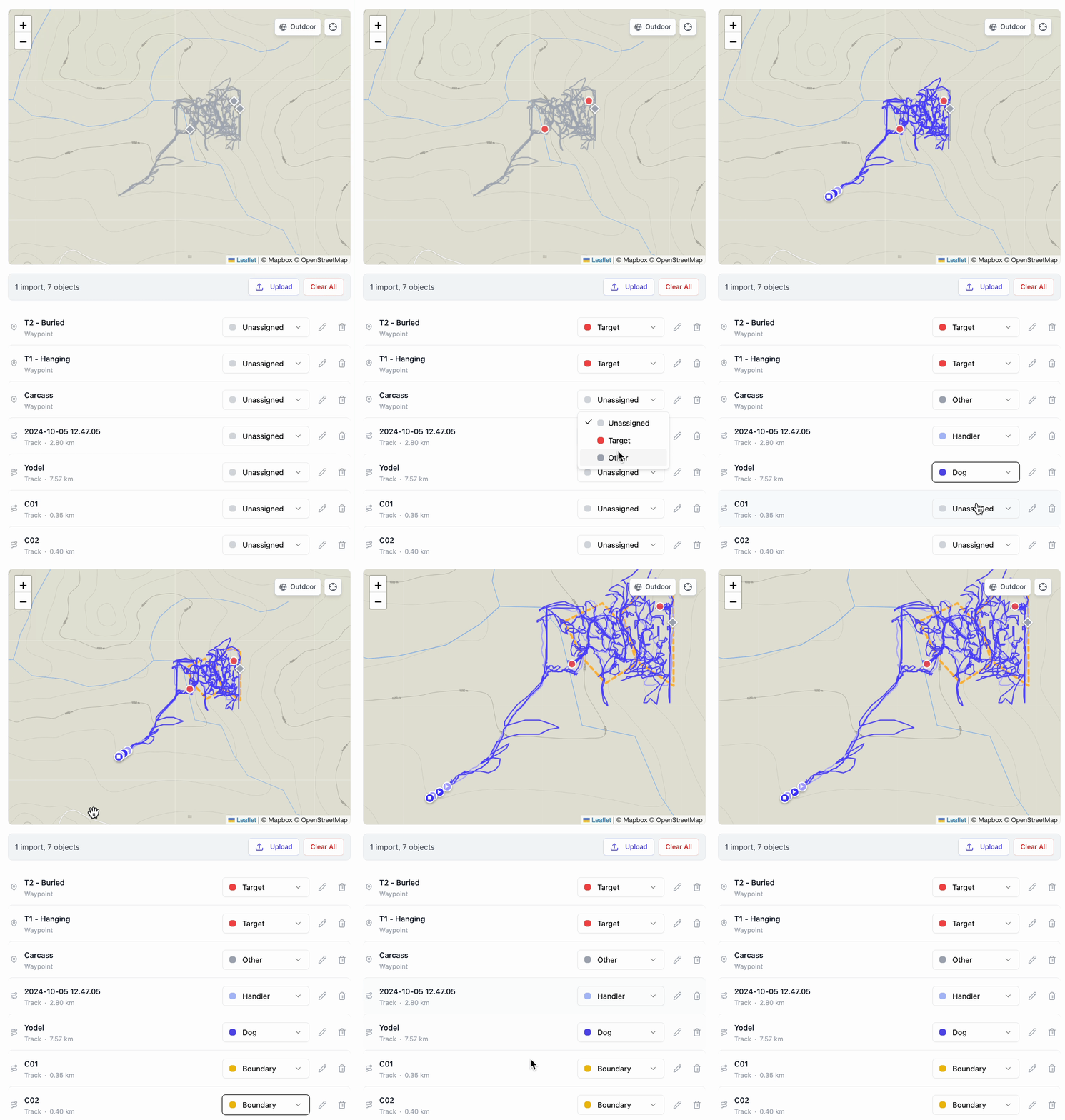
5. Assign roles to each GPS object
6. Optional: Trim tracks
Click the pencil icon next to a track to adjust the start / end position, which will automatically adjust the start and end time of the track.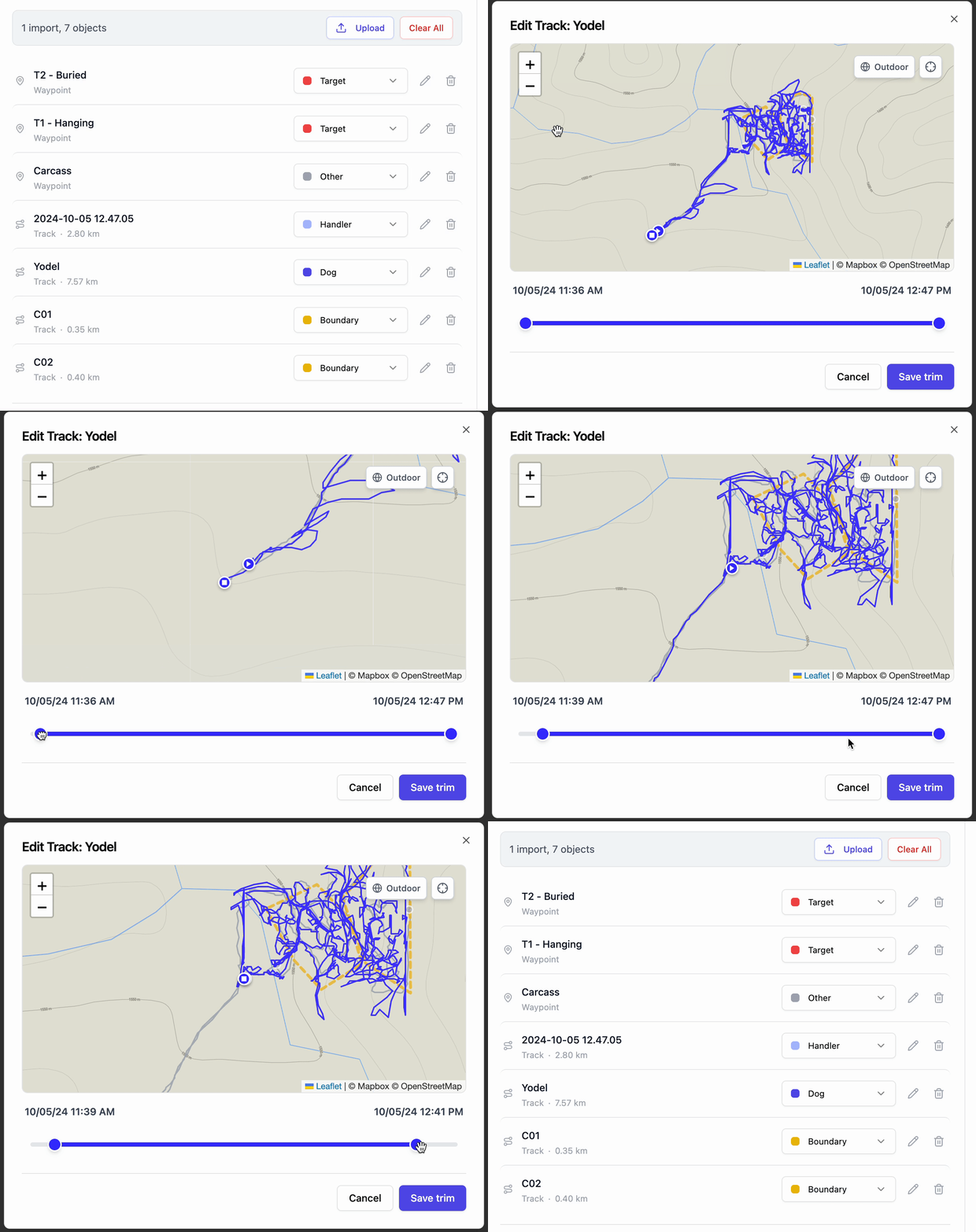
7. Optional: Edit Waypoint position
Click the pencil icon next to a waypoint to adjust the position.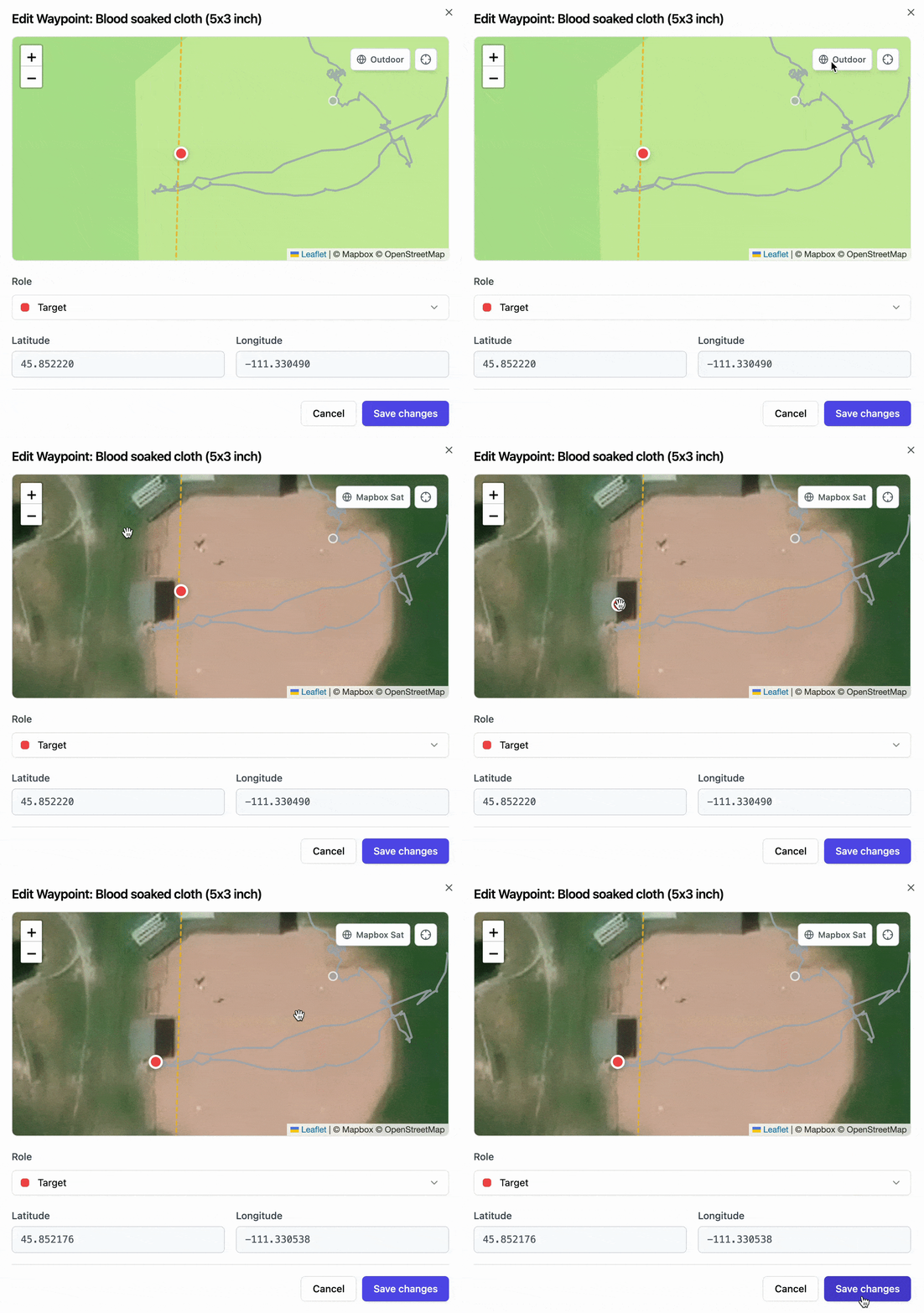
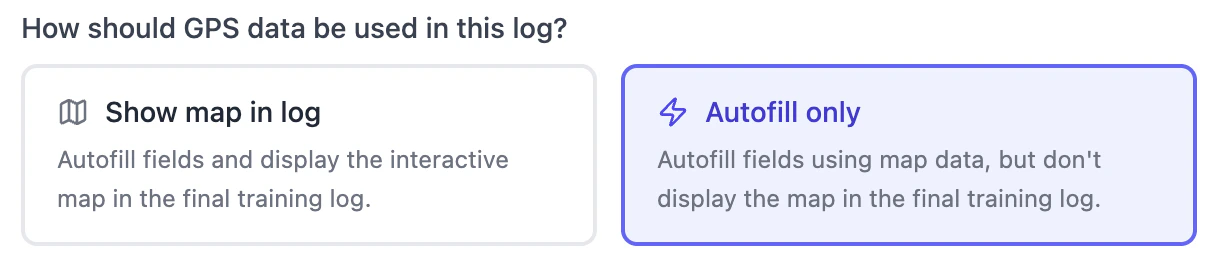
What does “Autofill Only” mean?
Use Autofill only when GPS data is helpful for populating your log, but the map itself is not useful to display. This is often the case for small indoor drills, where the track may appear as overlapping lines with little review value.Even without showing the map, a recorded track can still provide useful details like weather location, start time, and working duration.We recommend using a lightweight GPS watch or tracking app to capture these sessions. For Apple Watch users, WorkOutdoors is a great option, but any app or device that can export a GPX file will work.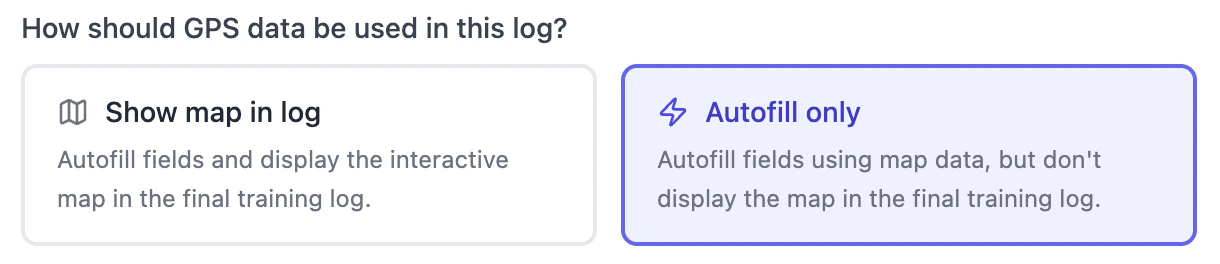
Use Autofill only when GPS data is helpful for populating your log, but the map itself is not useful to display. This is often the case for small indoor drills, where the track may appear as overlapping lines with little review value.Even without showing the map, a recorded track can still provide useful details like weather location, start time, and working duration.We recommend using a lightweight GPS watch or tracking app to capture these sessions. For Apple Watch users, WorkOutdoors is a great option, but any app or device that can export a GPX file will work.
8. Click Analyze to preview the data
If there’s anything you don’t want added to the form, just uncheck the box.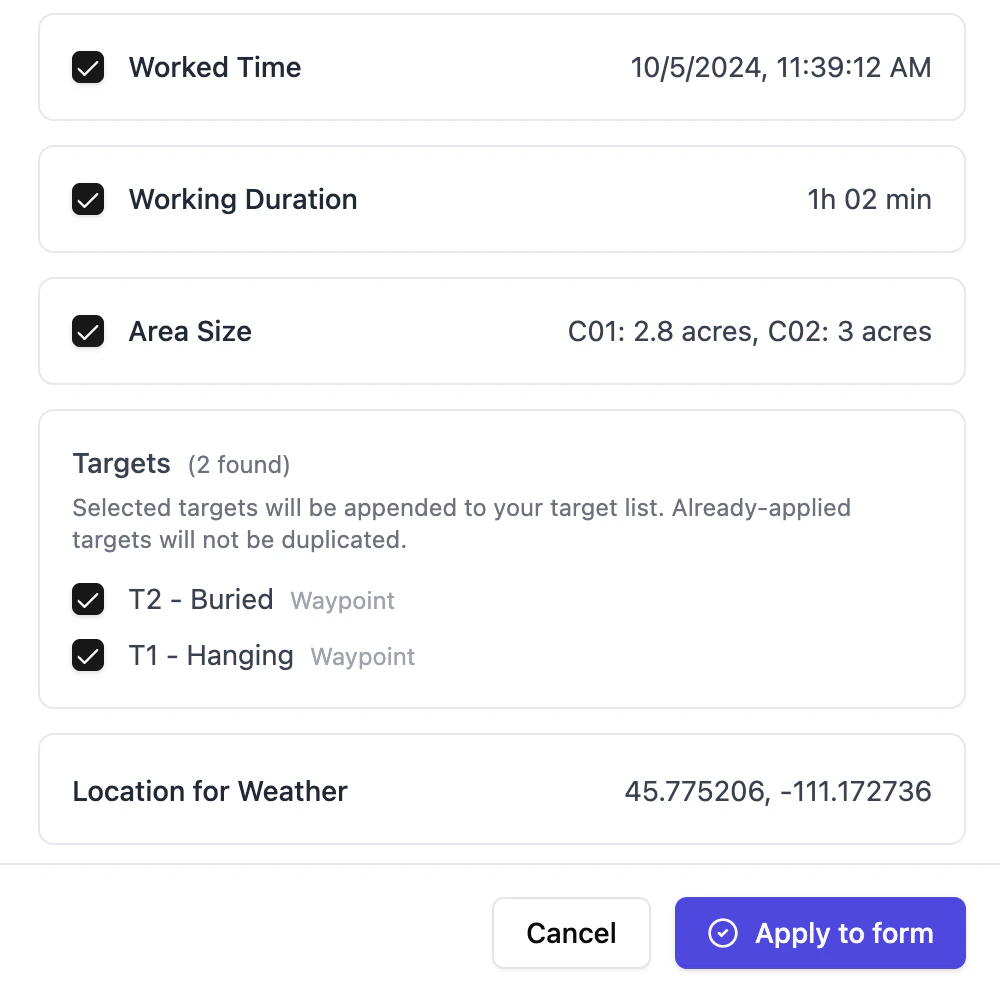
9. Fill out the rest of the form
Everything prefilled from GPS will show a green Calculated from GPS badge. All fields that still need your input will be highlighted in yellow.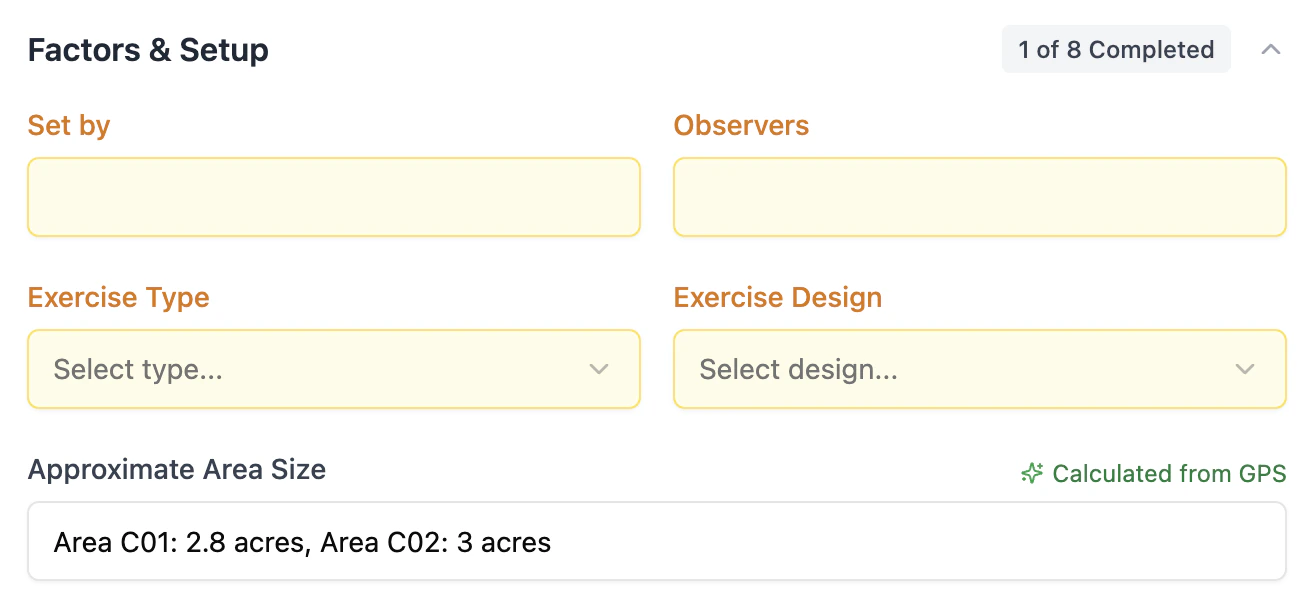
Other GPS Questions
What does “Autofill Only” mean?
Use Autofill only when GPS data is helpful for populating your log, but the map itself is not useful to display. This is often the case for small indoor drills, where the track may appear as overlapping lines with little review value. Even without showing the map, a recorded track can still provide useful details like weather location, start time, and working duration. We recommend using a lightweight GPS watch or tracking app to capture these sessions. For Apple Watch users, WorkOutdoors is a great option, but any app or device that can export a GPX file will work.