
- Event name
- Date & time
- Location
- Notes from D4H
Get your D4H Calendar Link
1
Open D4H Team Manager
2
Click "My Calendar"
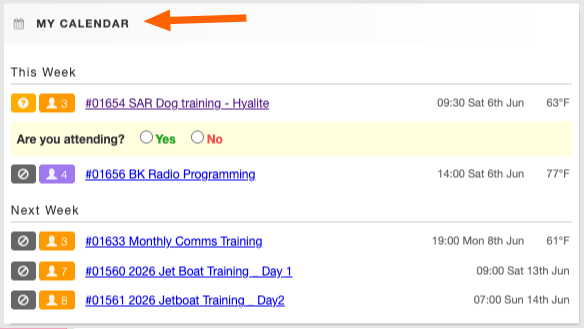
3
Scroll to the bottom of the page and copy the iCal Link
This is a private calendar link, so treat it like a password. Anyone with the link may be able to view the calendar events it contains.\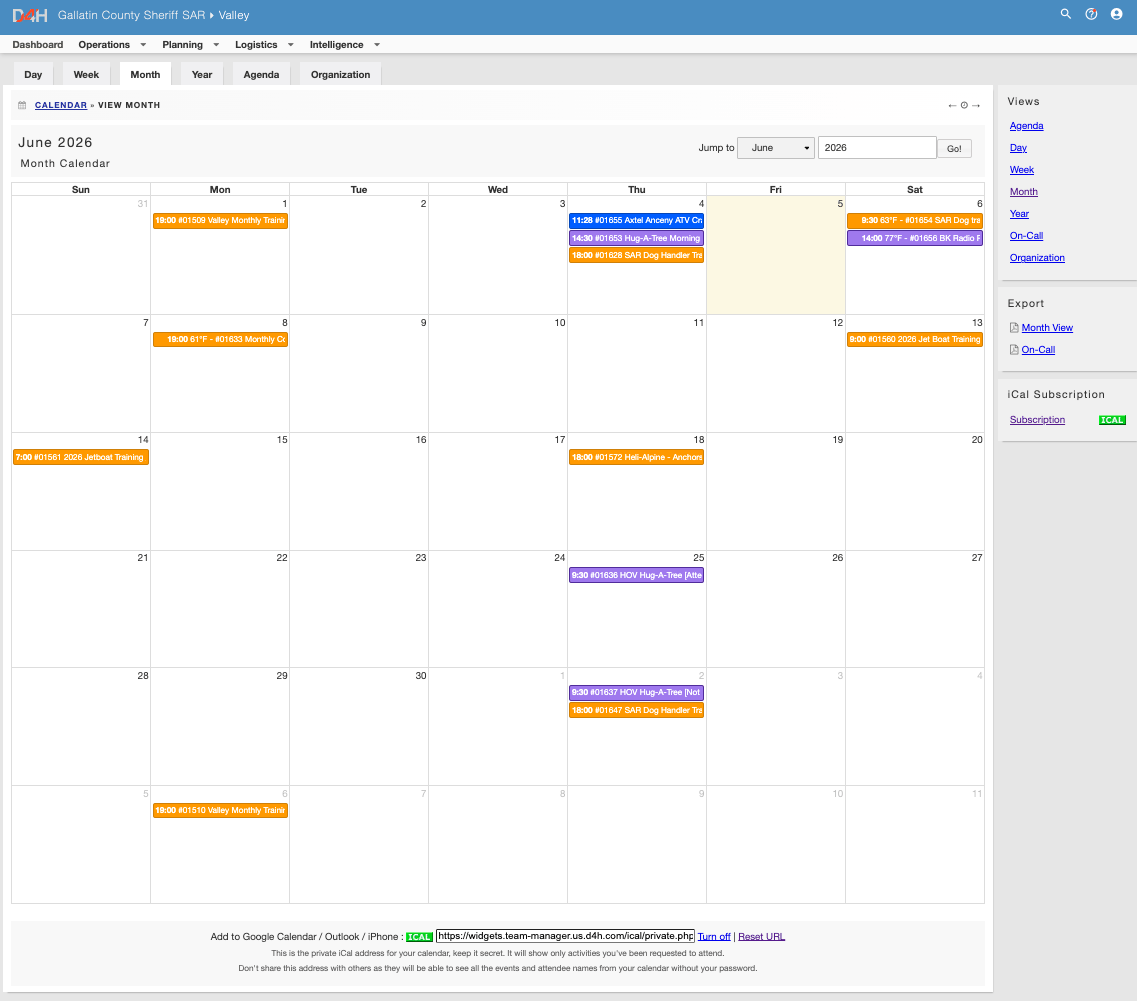
Connect D4H in K9 Training Log
- Open K9 Training Log
- Click Settings in the sidebar
- Click D4H Integration
- Paste in your D4H iCal URL
- Click Connect D4H
Sync your D4H Calendar
After D4H is connected, K9TL can sync your D4H calendar from the Training Calendar. You will see a small D4H sync status near the top of the calendar. Click it any time you want to sync manually.Add a D4H event to your K9TL calendar
D4H events will appear on your Training Calendar as suggested entries. To add a D4H event to K9TL:- Click the D4H suggested event
- Click Add to K9TL Calendar
- Review the event details
- Edit anything you want to change
- Click Create Event
Hide a D4H Suggestion
If a D4H event is not something you want to track in K9TL, you can hide it.- Click the D4H suggested event
- Click Hide suggestion