> ## Documentation Index
> Fetch the complete documentation index at: https://docs.k9traininglog.com/llms.txt
> Use this file to discover all available pages before exploring further.

# Get K9TL on your iPhone

K9 Training Log is not a native app (yet!) but it works well on iOS devices and can be added to your home screen, so that it works similarly to an app.

**To add to your home screen, follow these instructions:**

<Columns cols={3}>
  <Column>
    Open [K9TrainingLog.com](http://K9TrainingLog.com) in the Safari app and log in to your account
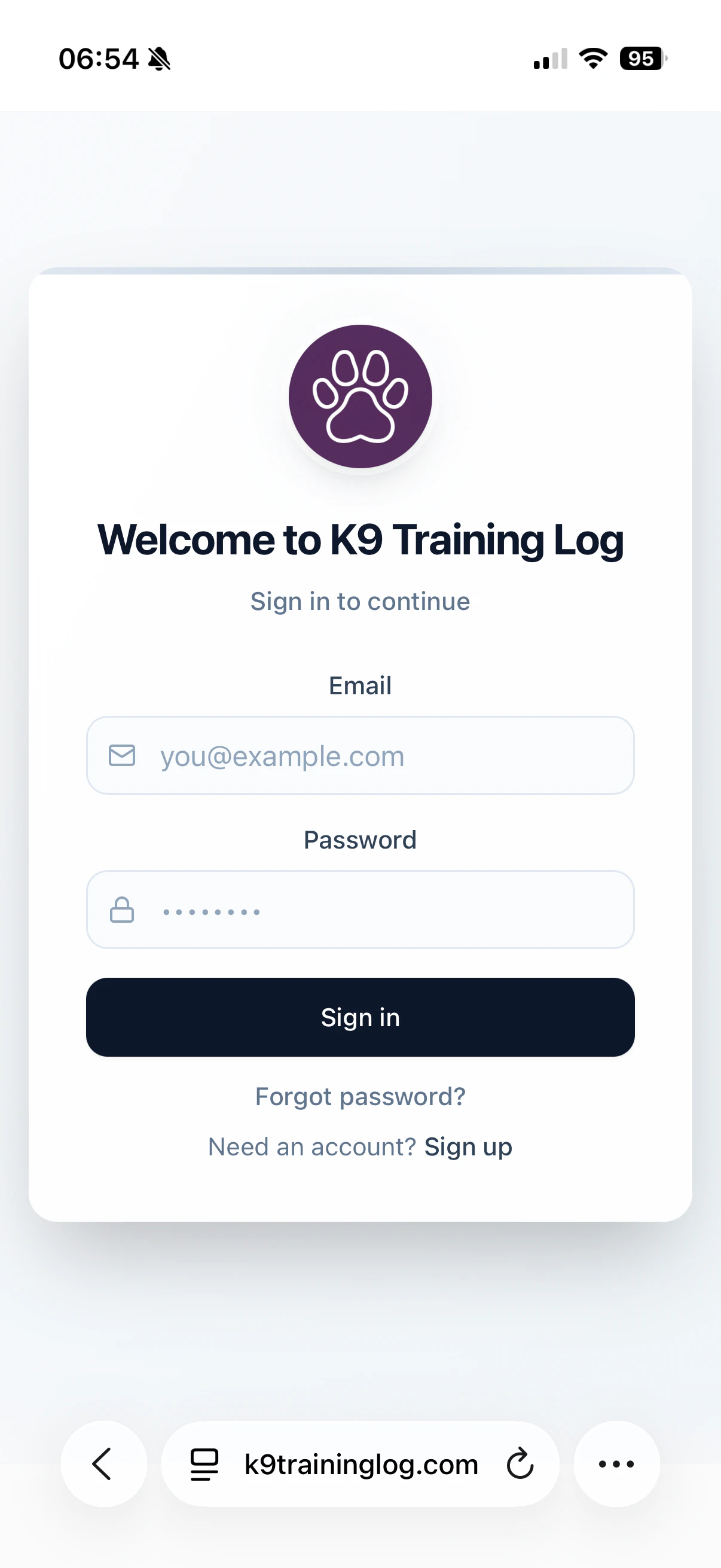
    <Frame>
      <img src="https://mintcdn.com/k9traininglog/Cvjh_2WDeJqI_03E/images/image-70.png?fit=max&auto=format&n=Cvjh_2WDeJqI_03E&q=85&s=c697de5cdfb904306d47f1b2e2188d91" alt="Image" width="1206" height="2622" data-path="images/image-70.png" />
    </Frame>
  </Column>

  <Column>
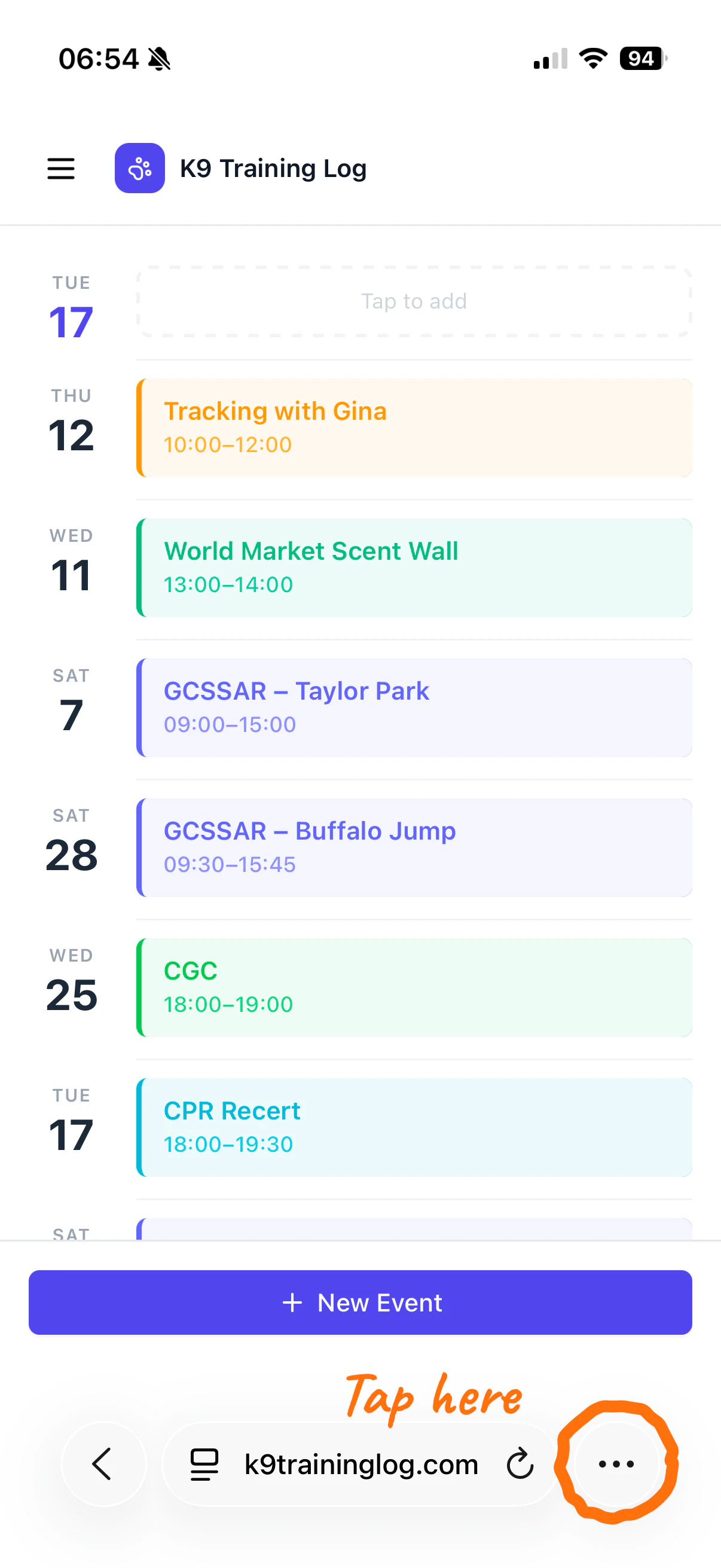
    Tap the 3 dot icon in the bottom right corner
    <Frame>
      <img src="https://mintcdn.com/k9traininglog/Cvjh_2WDeJqI_03E/images/image-71.png?fit=max&auto=format&n=Cvjh_2WDeJqI_03E&q=85&s=220eb2c1036798b6a3e473889f4ea0da" alt="Image" width="1206" height="2622" data-path="images/image-71.png" />
    </Frame>
  </Column>

  <Column>
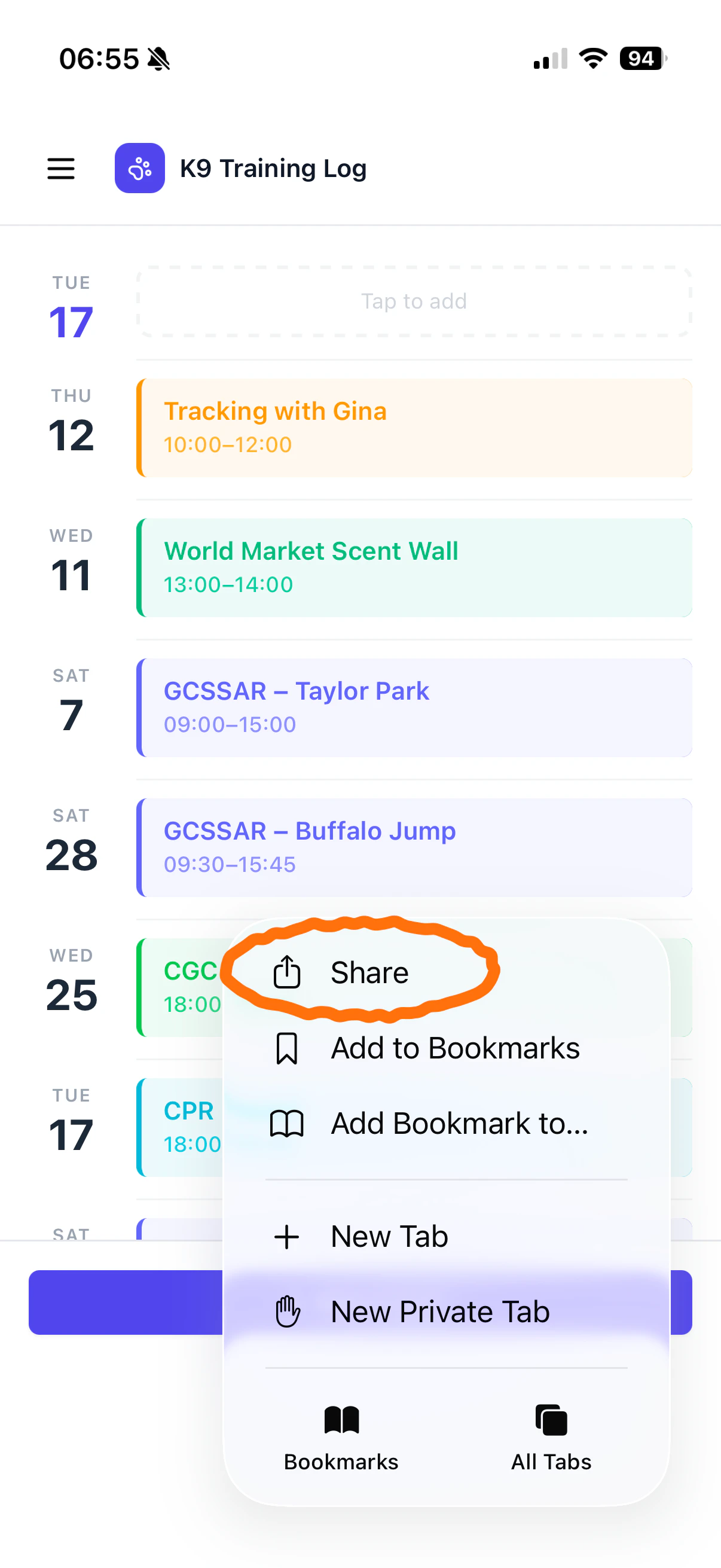
    Tap Share

    <Frame>
      <img src="https://mintcdn.com/k9traininglog/Cvjh_2WDeJqI_03E/images/image-72.png?fit=max&auto=format&n=Cvjh_2WDeJqI_03E&q=85&s=e9589ac3347f83eae55c96cf691856e5" alt="Image" width="1206" height="2622" data-path="images/image-72.png" />
    </Frame>
  </Column>
</Columns>

<Columns cols={3}>
  <Column>
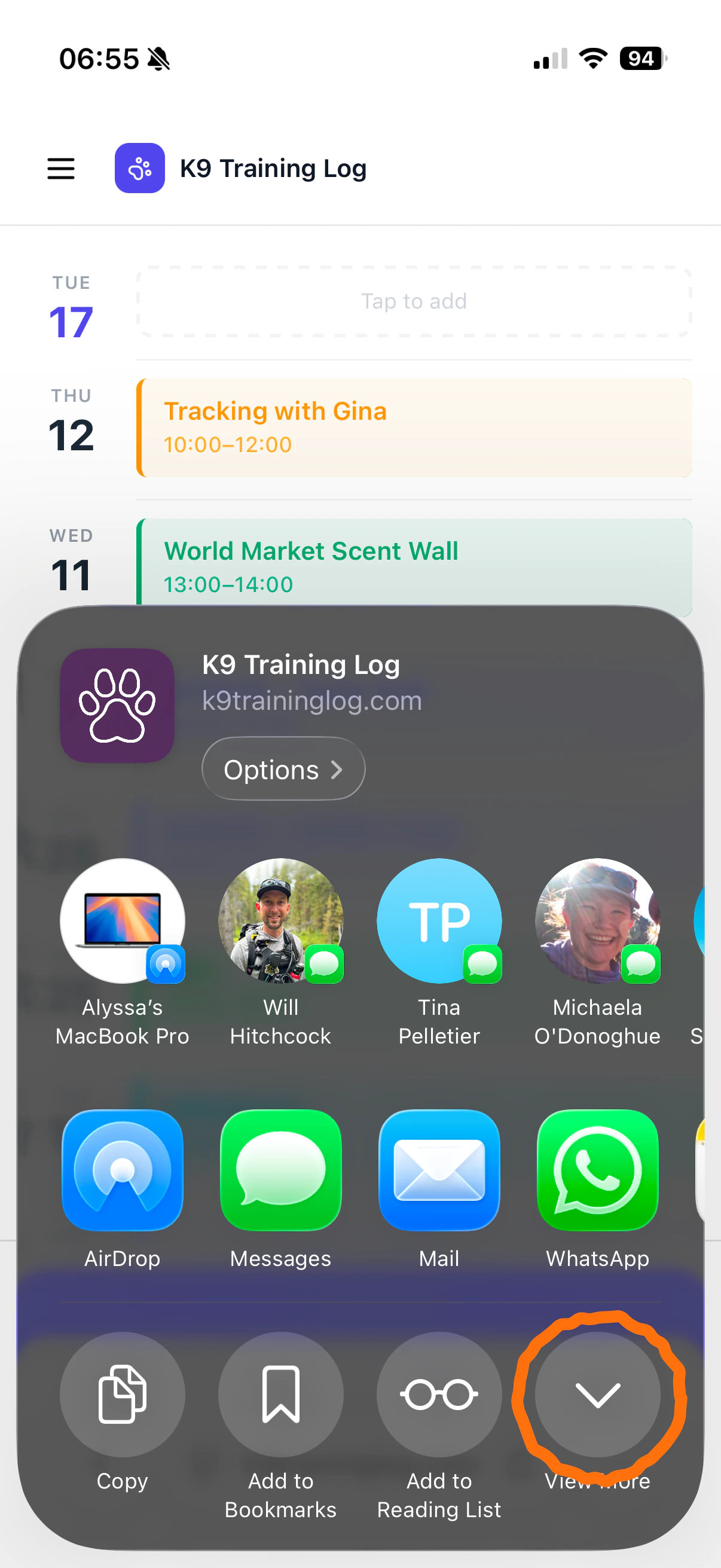
    Tap View more in the bottom right corner
    <Frame>
      <img src="https://mintcdn.com/k9traininglog/Cvjh_2WDeJqI_03E/images/image-73.png?fit=max&auto=format&n=Cvjh_2WDeJqI_03E&q=85&s=5f03ac97aac434dddd34bc6d25582924" alt="Image" width="1206" height="2622" data-path="images/image-73.png" />
    </Frame>
  </Column>

  <Column>
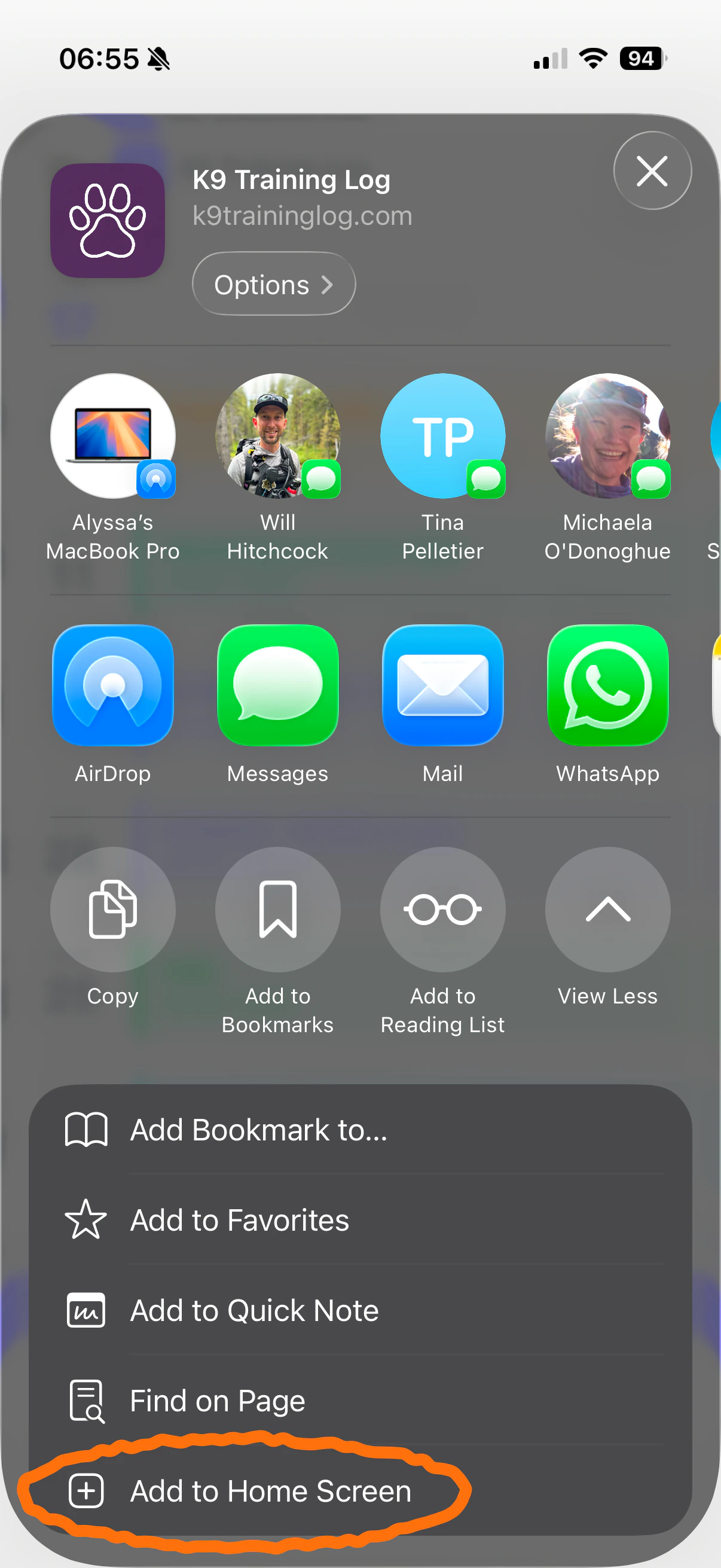
    Tap **Add to Home Screen** at the very bottom
    <Frame>
      <img src="https://mintcdn.com/k9traininglog/Cvjh_2WDeJqI_03E/images/image-74.png?fit=max&auto=format&n=Cvjh_2WDeJqI_03E&q=85&s=5189e0d72c6adf0e835530a545515e0c" alt="Image" width="1206" height="2622" data-path="images/image-74.png" />
    </Frame>
  </Column>

  <Column>
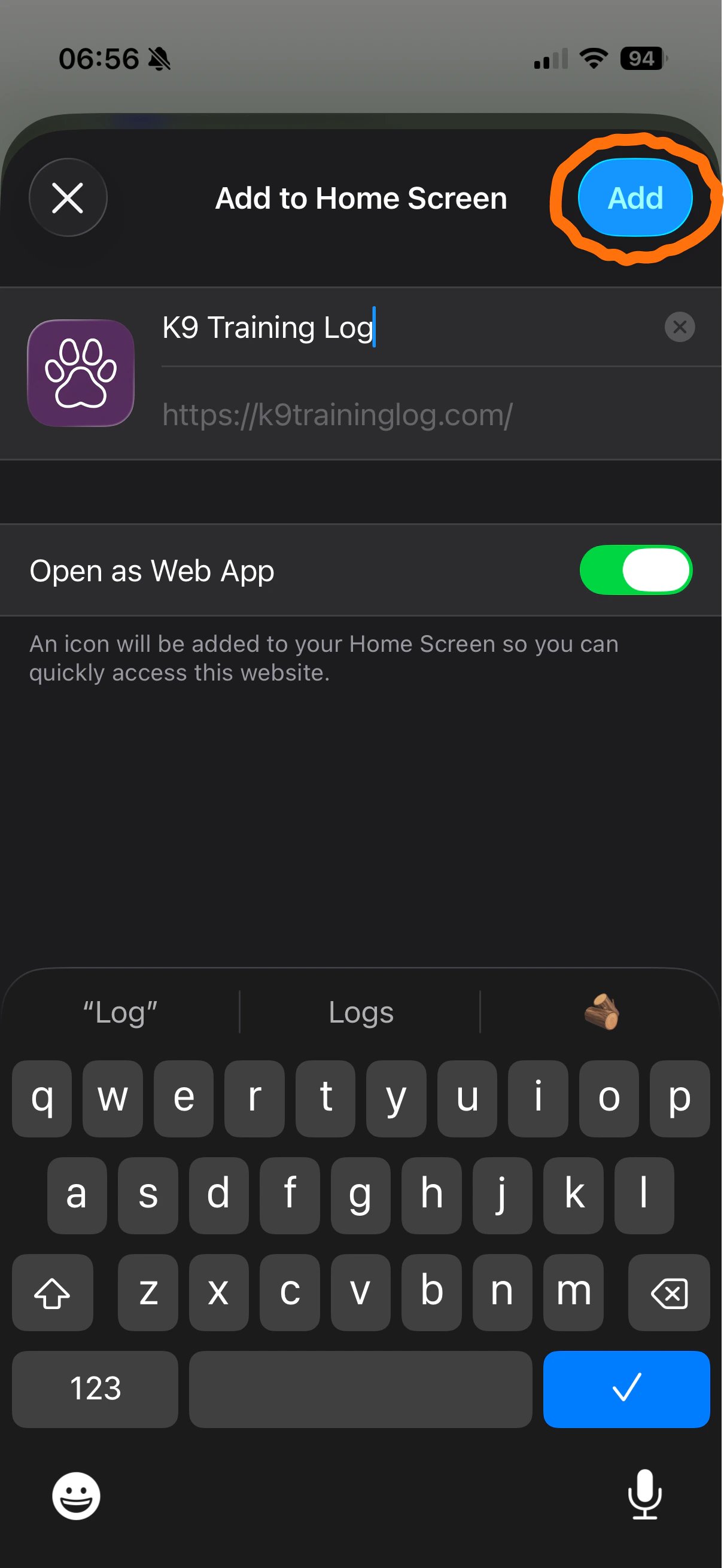
    Ensure **Open as Web App** is green, then tap the **Add button** in the upper right
    <Frame>
      <img src="https://mintcdn.com/k9traininglog/Cvjh_2WDeJqI_03E/images/image-75.png?fit=max&auto=format&n=Cvjh_2WDeJqI_03E&q=85&s=a2d547738a3683049b3722f0d27f788e" alt="Image" width="1210" height="2622" data-path="images/image-75.png" />
    </Frame>
  </Column>
</Columns>